VMware Horizon Administrating Sessions
From SEPT Knowledge Base
Students using the VMware Horizon Client can be administered and assisted from the web-based administrator control panel.
Overview
- On an instructor’s computer in each lab, a desktop icon links to the control panel. Click on the icon to pull up the control panel in the default browser.
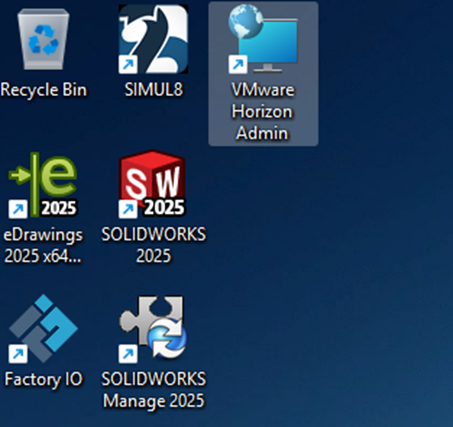
- If using a different machine, open a web browser and enter the address of the management console:
- The address for ETB labs is https://etblabs.sept.mcmaster.ca/admin
- The address for MARC labs is https://marclabs.sept.mcmaster.ca/admin
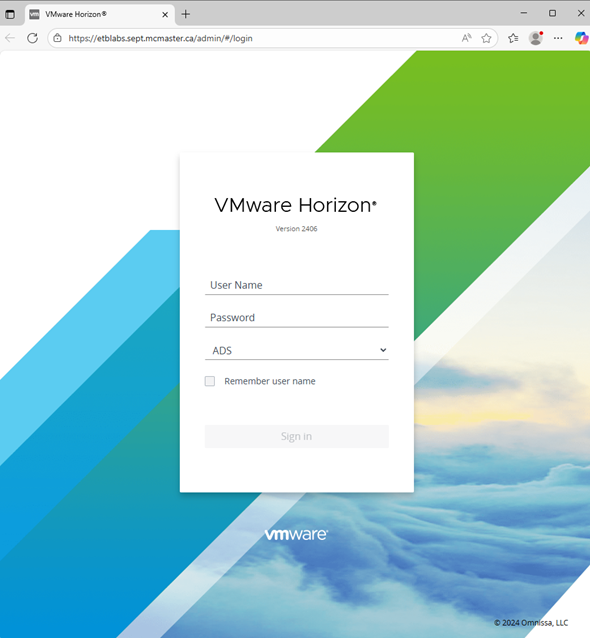
- You will be directed to the login page shown below. Login to the console using your MacID and password, ensure the option “ADS” is selected from the menu
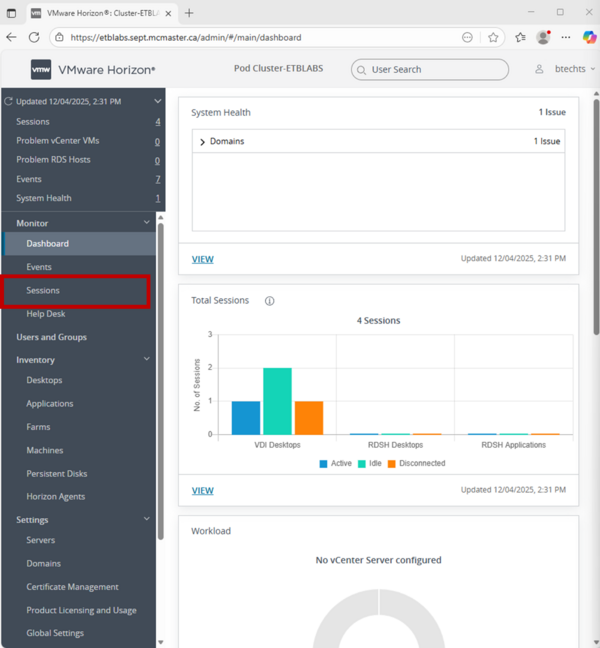
- On login you will be brought to the dashboard. Access the session control panel by selecting the “Sessions” button from the navigation menu on the left


Administrating Student Sessions
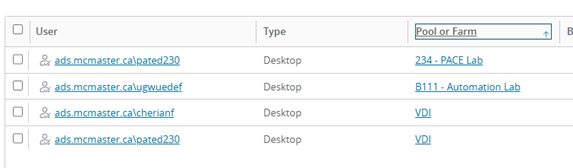
- Once logged into the session control panel, all connected sessions will be available for administration. As seen in the image below, there are 4 students remotely connected to machines via VMware and 1 of those connected to a machine in ETB 234 lab. This control panel shows information such as what time the students connected at how long they have been connected for, and which machine they are using.
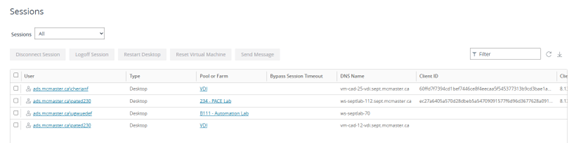
- The session list can be sorted by category by clicking on the headers across the top. For example, to sort by the pool (lab classroom) click on the header titled “Pool of Farm”.
- The search bar at the top right labelled “Filter” can also be used to search for students by MacID, email, or to search for a lab classroom.

- To logoff a student, select the checkbox on the left, then select the “Logoff Session” button above the header. Please ensure you select “Logoff Session” and not “Disconnect Session”.
- Messages can also be sent to a student’s remote desktop using the “Send Message” button on the right.