ETB 226 General Instructions
From SEPT Knowledge Base
ETB 226 Meeting Room TV Instructions
Overview
Layout of the meeting room TV and Computer

General Instructions
- Turn on the TV using the Samsung remote red power button. Shown below. The remote may either be on the table or at the computer desk. See the section [INSERT SECTION] if remote is missing
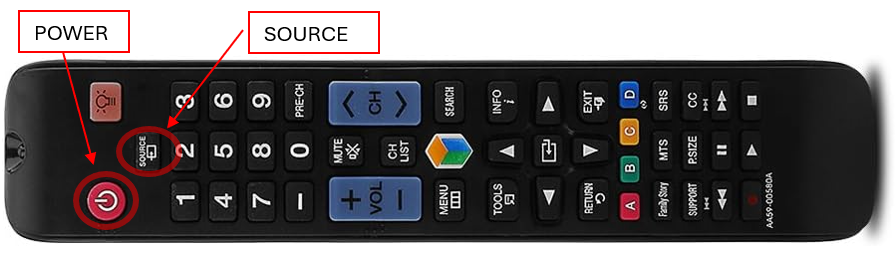
- If you are using the meeting room computer and it does not show up on the screen, confirm that the “HDMI1” source is selected on the TV using the “SOURCE” button on the remote. Click repeatedly on the “SOURCE” button until “HDMI1” is selected. You can also use the Up/Down direction arrows of the remote to select the input more quickly. You can log onto the computer using your MAC ID.
- If you use a laptop then connect your laptop to the available HDMI cable that may be on the table. The TV may automatically switch to your laptop when you plug in the cable to your laptop HDMI port or dongle. Or you may need to use the remote “SOURCE” button to select “HDMI3”. Audio also goes through the HDMI cable. You may need to manual select HDMI audio output on your laptop if it does not automatically switch on its own.
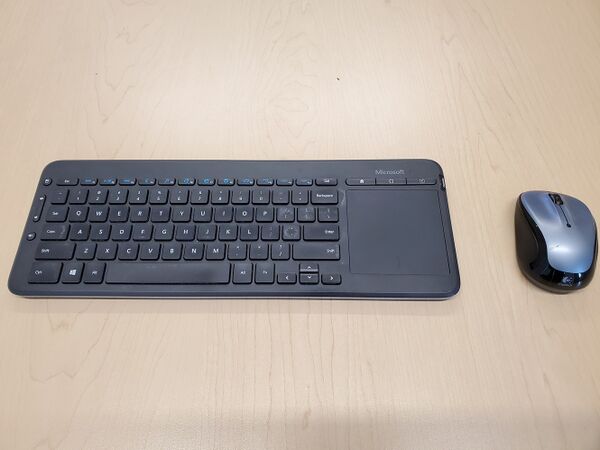
- You can control the meeting room computer from the table using the provided wireless keyboard and mouse. Shown below. Check that the power is switched on at each device.
- To turn off the TV press the red power button on the remote once. Also turn off the power at the devices. You can leave the computer on. Remember to log off


Controlling TV without remote

- If the remote is missing, then find the TV joystick power button on the back at the bottom right and press it in to turn the TV on.
- Pressing on the joystick power button again will bring up a menu.
- From the menu you can select the desired source/input by move the joystick towards you (right when looking at the screen) to the “SOURCE” icon. The icon will be highlighted. Then press on the joystick button to select “SOURCE”.
- The Source menu will appear. Use the joystick to move up or down to the desired source/input. Then press on the joystick button to select the highlighted source/input. The menu should disappear once the selection is made.
- To turn off the TV press on the joystick button and then move the joystick down to select the “POWER” icon. The icon will be highlighted. Then press on the joystick button to power off the TV.


An image of the source menu option to select: